Afosto CMS - Apps - Filter sorting
To use this functionality you need the app ‘Filter sorting’.
After installing the app, the settings menu of the app opens, where you can give a custom sorting of the filters per menu item.

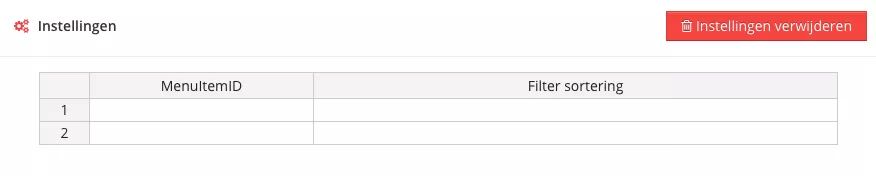
In the left column you specify the menu item ID for which you want to set a custom sorting. In the right column, specify the custom sort.
Fill in the menu item ID
You can identify the menu item ID as follows:
- Go to the menu of your webshop.
- Open the menu item you want to apply the custom sorting to.
- In the URL of your browser you will find a URL in the following format: app.afosto.com /menuItem/3499/update/4649?menu_item_id=188952 Use the bold ID in the left column of the settings.
Fill filter sorting
You determine the filter sorting by putting the names of the filters as they are set at https://app.afosto.com/filters in order and separating them with a comma. To set the filters on the page as follows:
- Price
- Brand
- nl_Subcategory
- nl_Color
you need to put the following values in the right column.
Price,Brand,nl_subcategory,nl_color

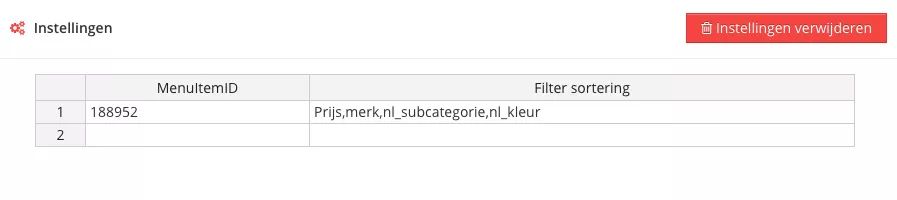
The sorting of your filters will now be overridden for this particular menu item.
In this list you don’t have to put down all the filter items. The items that you do not fill in will follow the order of the standard sorting that you set at https://app.afosto.com/filters.
**Please note: ** if you navigate from a clean filter to a dirty filter the order will follow the sorting of the main page.